Like it

Showing posts with label MVC 3. Show all posts

Sunday, July 17, 2011

Great Free Video Training on ASP.NET Web Forms and ASP.NET MVC

We've recently published some great end-to-end ASP.NET video training courses on the http://asp.net web-site. 
Created by Pluralsight (a great .NET training company), these video courses are available free of charge and provide a great way to learn (or brush-up your knowledge of) ASP.NET Web Forms 4 and ASP.NET MVC 3.  Each course is taught by a single trainer, and provides a nice end-to-end curriculum (from basic concepts to working with the new Entity Framework "code first" model to security, deployment, and testing).   
Below are some details on the two free training courses we published this weekend (and links for how to watch them):

ASP.NET MVC 3 Training

This weekend we posted the final videos in a brand new 10 part ASP.NET MVC 3 training course taught by K Scott Allen.  You can now watch the entire series for free on the http://asp.net/mvc page (it is on the left-hand side within the "Essential Videos" section):
image
Below is a breakdown of the 10 video modules in the ASP.NET MVC 3 series:
You can find pointers to the entire series on the http://asp.net/mvc page.

ASP.NET Web Forms 4 Training

Dan Wahlin is developing a great course on ASP.NET Web Forms 4.
You can watch the series for free on the http://asp.net/web-forms page (it is on the left-hand side within the "Essential Videos" section):
image
Below is a breakdown of the 9 video modules in the ASP.NET Web Forms series:
You can find pointers to the entire series on the http://asp.net/web-forms page.  We'll be posting links to the final 3 videos in the series later this month.

Even More Content Coming

Keep an eye on the http://asp.net/web-forms and http://asp.net/mvc learning centers in the months ahead as we post even more textual and video training content.  Each of the two learning centers now has a nice structured outline of content that you can use to quickly look things up as well as learn how ASP.NET works.  We'll be refining and extending the content even more in the weeks and months ahead.
Hope this helps,
Scott
P.S. In addition to blogging, I am also now using Twitter for quick updates and to share links. Follow me at: twitter.com/scottgu

ASP.NET MVC 3 and the @helper syntax within Razor

ASP.NET MVC 3 supports a new view-engine option called "Razor" (in addition to continuing to support/enhance the existing .aspx view engine).  Razor minimizes the number of characters and keystrokes required when writing a view template, and enables a fast, fluid coding workflow.
Unlike most template syntaxes, with Razor you do not need to interrupt your coding to explicitly denote the start and end of server blocks within your HTML. The Razor parser is smart enough to infer this from your code. This enables a compact and expressive syntax which is clean, fast and fun to type.
You can learn more about Razor from some of the blog posts I've done about it over the last last 9 months:
Today's blog post covers a cool feature of Razor that a lot of people don't know about – which is the ability to define re-usable helper methods using the @helper syntax.

Simple @helper method scenario

The @helper syntax within Razor enables you to easily create re-usable helper methods that can encapsulate output functionality within your view templates.  They enable better code reuse, and can also facilitate more readable code.  Let's look at a super-simple scenario of how the @helper syntax can be used. 
Code before we define a @helper method
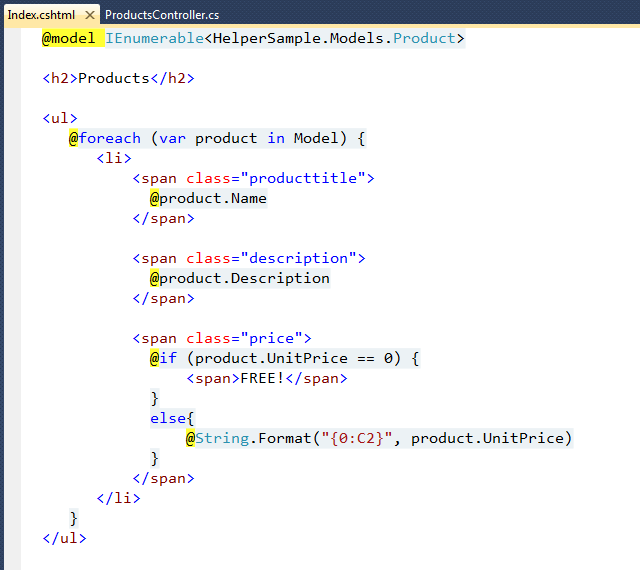
Let's look at a simple product listing scenario where we list product details, and output either the price of the product – or the word "FREE!" if the item doesn't cost anything:
image
The above code is fairly straight-forward, and Razor's syntax makes it easy to integrate server-side C# code within the HTML. 
One place that is a little messy, though, is the if/else logic for the price.  We will likely output prices elsewhere within the site (or within the same page), and duplicating the above logic everywhere would be error-prone and hard to maintain.  Scenarios like this are prime candidates to extract and refactor into helper methods using the @helper syntax.
Refactoring the above sample using the @helper syntax
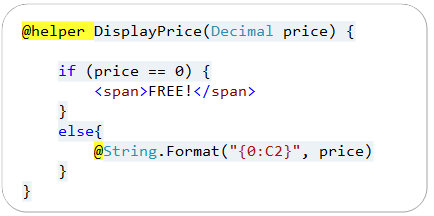
Let's extract the price output logic, and encapsulate it within a helper method that we'll name "DisplayPrice".  We can do this by re-writing the sample to the code below:
image
We've used the @helper syntax above to define a reusable helper method named "DisplayPrice".  Just like a standard C#/VB method, it can contain any number of arguments (you can also define the arguments to be either nullable or optional).  Unlike standard C#/VB methods, though, @helper methods can contain both content and code, and support the full Razor syntax within them – which makes it really easy to define and encapsulate rendering/formatting helper methods:
SNAGHTML20fae4df
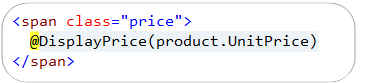
You can invoke @helper methods just like you would a standard C# or VB method:
SNAGHTML20fcdc86
Visual Studio will provide code intellisense when invoking the method:
image

Reusing @helpers across multiple views

In the example above, we defined our @helper method within the same view template as the code that called it.  Alternatively, we can define the @helper method outside of our view template, and enable it to be re-used across all of the view templates in our project.
We can accomplish this by saving our @helper methods within .cshtml/.vbhtml files that are placed within a \App_Code directory that you create at the root of a project.  For example, below I created a "ScottGu.cshtml" file within the \App_Code folder, and defined two separate helper methods within the file (you can have any number of helper methods within each file):
SNAGHTML2107b6ae
Once our helpers are defined at the app level, we can use them within any view template of our application. 
The ScottGu.cshtml template in the \App_Code folder above will logically compile down to a class called "ScottGu" with static members of "DisplayPrice" and "AnotherHelper" within it.  We can re-write our previous sample to call it using the code below:
SNAGHTML210d65c1
Visual Studio will provide code intellisense when calling app-level helpers like this:
image
May 15th Update: One issue that a few people have pointed out is that when a @helper is saved within the \app_code directory, you don't by default get access to the ASP.NET MVC Html helper methods within it (e.g. Html.ActionLink(), Html.TextBox(), etc).  You do get access to the built-in HTML helper methods when they are defined in the same file as your views.  This is not supported out of the box, though, when the helpers are within the \app_code directory - we'll add this in the next release.  Paul Stovall has a nice helper class that you can use in the meantime to access and use the built-in Html helper methods within @helper methods you define in the \app_code directory.  You can learn how to use it here.

Summary

Razor's @helper syntax provides a convenient way to encapsulate rendering functionality into helper methods that you can re-use within individual view templates, or across all view templates within a project. 
You can use this functionality to write code that is even cleaner and more maintainable. 
Hope this helps,
Scott
P.S. In addition to blogging, I am also now using Twitter for quick updates and to share links. Follow me at: twitter.com/scottgu

HTML5 Improvements with the ASP.NET MVC 3 Tools Update


Last week I blogged about the new ASP.NET MVC 3 Tools Update, and then followed it up with a detailed post that covered using the EF Code First and the new Data Scaffolding features in it.
Today's blog post is a continuation of this series and covers some of the new HTML5 improvements with the ASP.NET MVC 3 Tools Update release.

Project Template Support for HTML5 Semantic Markup

The ASP.NET MVC 3 Tools Update adds support for you to optionally use HTML5 semantic markup when creating new ASP.NET MVC 3 projects.  You can specify this by checking the "Use HTML5 semantic markup" checkbox when creating new projects:
SNAGHTML10f01f0d
Selecting this checkbox option does two things:
1) It causes VS 2010 to use HTML5 semantic markup elements like <header>, <footer>, <section> and <nav> within the default layout.cshtml file that is generated.  This is instead of just using <div> elements for header/footer/navigation elements – which is the default behavior if the HTML5 semantic checkbox isn't selected (and the same behavior that we have shipped earlier).
2) It causes VS 2010 to reference the modernizr.js JavaScript library by default within the layout.cshtml – which among other things will allow you to use CSS to style HTML5 semantic markup elements even with older browsers like IE6 (ensuring your site still works for older browsers).

Understanding Semantic HTML5 Markup

HTML5 introduces a number of new elements and APIs that introduce new behavioral capability (features like <video>, <canvas>, <svg>, etc). 
HTML5 also introduces new elements (like <section>, <article>, <aside>, <header>, and <nav>) that enable you to enrich the semantic meaning and structure of your content and pages.  These features allow you to write your pages so that you don't have to use opaque <div> elements to structure everything, and instead they allow you to better express the semantic meaning of your content.  This makes your code a little cleaner to read, and long-term will hopefully enable browsers and search engines to better understand your markup and provide even richer experiences.
When you create a new ASP.NET MVC 3 Project with the "Use HTML5 semantic markup" checkbox selected, Visual Studio will use semantic HTML instead of <div> elements (where appropriate) within the layout.cshtml file that is generated for the new project.  This means that the top of the site is wrapped in a <header> element, navigation links are surrounded by a <nav> element, and the footer is encapsulated within a <footer> element.
Learn more about Semantic HTML5 Markup
Bruce Lawson and Remy Sharp have a great Introducing HTML5 book that covers (among other new HTML5 features) how you can take advantage of semantic HTML5 markup:
image
You can also read Emily Lewis' Using HTML5's New Semantic Tags Today article on MSDN's ScriptJunkie site to learn more about the role of HTML5 semantic markup and see a practical example of it in action.

HTML5 Intellisense within VS 2010 SP1

With VS 2010 SP1, you can now change the "Target Schema for Validation" drop-down within the Text Editor toolbar to target HTML5 with intellisense:
image
When you select HTML5 as your validation target, the HTML intellisense engine within Visual Studio will provide appropriate intellisense for the new HTML5 elements and attributes.  This is true for both behavioral elements like <canvas> and <video> as well as semantic elements like <article> and <nav>:
SNAGHTML1115b0b2
Note: the next release of VS will default to honoring the <!DOCTYPE> at the top of the page when driving intellisense, and then allow you to specify a default standard to use when it isn't present (or when you are editing within user controls, or partial/editor templates).  With VS 2010 and earlier versions of Visual Studio you have to explicitly set which HTML version you want to target.

Modernizr.js Library

Semantic HTML5 markup is now supported by all modern browser vendors, and you can use standard CSS techniques to stylize and customize pages built with it.
One challenge, though, is that there are still a lot of older browsers out there – and browsers like IE6 by default don't allow you to stylize semantic HTML5 elements using CSS.  The semantic HTML5 site that looks beautiful in a modern browser might end up looking broken unless you use a library that enables you to work around this limitation.
Modernizr.js
Modernizr is a small and elegant open-source JavaScript library that helps you take advantage of emerging web technologies (HTML5, CSS3) while still maintaining a level of compatibility with older browsers that may not yet support these new capabilities.  You can learn more about Modernizr from the http://modernizr.com/ website.
Starting with the ASP.NET MVC 3 Tools Update, we are now shipping Modernizr with ASP.NET MVC 3, and adding it by default to all new ASP.NET MVC 3 projects.  If you select the "Use HTML5 semantic markup" checkbox when creating new ASP.NET MVC 3 projects, Visual Studio will also add a reference to the Modernizr.js library by default within your layout.cshtml template:
image
Modernizr.js and using CSS with Semantic HTML5 on older Browsers
Including the above Modernizr.js script reference will enable you to use CSS to stylize semantic HTML5 elements – and have it work both in modern browsers (where it is natively supported), as well as older ones (including IE6).  Among other things, Modernizr is smart enough to run a little script that will cause older browsers to honor CSS rules with unknown elements they encounter.
You can see the benefit Modernizr brings with this by running the default ASP.NET MVC 3 project that is created using IE9.  If you use the default IE9 rendering mode (which supports Semantic HTML5 elements) the site will look like below, and use the browser's built-in CSS support for semantic HTML5:
SNAGHTML112b7c79
If you enable "Compatibility View" within the browser (the second icon at the top of IE's navigation bar) – you'll see a "downlevel" rendering of the page (just like what IE6/7/8 users would see).  Modernizr allows our CSS rules to work in this downlevel mode – despite the older IE rendering engine not natively supporting elements like <header>, <footer>, <nav>, <section>, etc:
SNAGHTML112e4acf
If we had not included Modernizr.js on the page, visitors to the site using older browsers would have instead seen something broken like this:
SNAGHTML1130d736
As you can see – Modernizr provides a big improvement over what users with older browser would have otherwise seen!  Best of all, we didn't have to write any code or author an alternative CSS style-sheet to get this to work.  And we are using HTML5 Semantic Markup throughout the site.
Using Modernizr to Detect Browser Capabilities
The above Semantic HTML5 markup example is just one of the nice benefits that Modernizr brings. 
Modernizr also makes it easy to check for browser capabilities (without you having to hard-code browser versions into code), and enables you to easily detect and light-up if a specific feature is supported.  You can learn more about how this works on the http://modernizr.com web-site. 
Justin Schwartzenberger has a nice blog post that shows this in action, and highlights How to use Modernizr with ASP.NET MVC 3 to store user data via HTML5 localstorage.  His tutorial shows an end-to-end ASP.NET MVC 3 sample where he uses HTML5's localstorage feature if it is available, and falls back to just using cookies on older browsers. 

Summary

The new ASP.NET MVC 3 Tooling Update is full of goodness.  If you haven't already downloaded and installed it I highly recommend you do so.  You can run the ASP.NET MVC 3 installer on the http://asp.net/mvc site to make sure you have the latest version.
The HTML5 Semantic Markup improvements in ASP.NET MVC 3 enable you to start designing sites that take better advantage of HTML5 and modern browsers.  Using Modernizr.js you can also have these sites continue to work with older browsers, and optionally light-up only when new features are enabled.
Hope this helps,
Scott
P.S. I am also now using Twitter for quick updates and to share links. Follow me at: twitter.com/scottgu

EF Code First and Data Scaffolding with the ASP.NET MVC 3 Tools Update


Earlier this week I blogged about the new ASP.NET MVC 3 Tools Update that we shipped last month. 
In today's blog post I'm going to go into more detail about two of the cool new features it brings:
  1. Built-in support for EF 4.1 (which includes the new EF "code-first" support)
  2. Built-in data scaffolding support within Visual Studio (which enables you to rapidly create data-driven sites)
These two features provide a really sweet, and extremely powerful, way to work with data and build data-driven web applications.

Scenario We'll Build

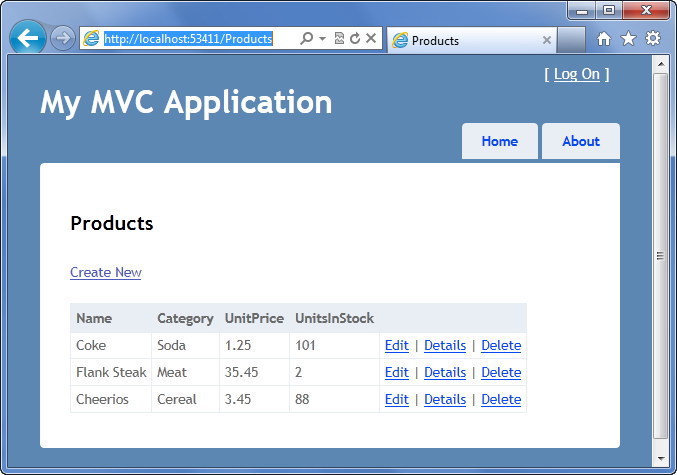
To help illustrate how to use the above features, we'll walkthrough building a simple data-drive site.  It will support listing products:
SNAGHTML4e066438
As well as creating/editing new products (and categories):
SNAGHTML4e078291
We can now build this entire application (and create the database that backs it) with ASP.NET MVC 3 in only a minute or two.

Step 1: Create New Project

We'll begin by creating a new ASP.NET MVC 3 project (using the File->New Project menu command).  We'll use the "Internet Project" template – which will provide us with a default starter template for our application. 
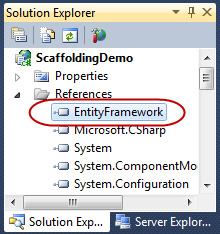
When you look at the newly created project within the Solution Explorer, you'll see that the ASP.NET MVC 3 Tools update adds a new assembly – EntityFramework – to our ASP.NET MVC 3 projects:
image
The EntityFramework assembly implements Entity Framework 4.1 – which we also released last month.  EF 4.1 brings with it a bunch of great data API improvements to .NET – including the new "code first" option.  EF Code First provides a really elegant and clean way to work with data, and enables you to do so without requiring a designer or XML mapping file.  You can now easily take advantage of this by default with all new ASP.NET MVC 3 projects.
We'll be using the EF Code First approach to implement our data access for this application.

Step 2: Implement Model Classes

Our first step will be to create two classes – Product and Category – that we'll use to define the "model" of our application.  We'll implement these as standard "plain old C# objects" within the \Models folder of our project using the code below:
image
Notice how the above classes are just standard classes with .NET data-types.  They do not need to derive from any base class, nor implement any interfaces. 
In addition to standard scalar properties, each class has an "association" property.  For example, the "Product" class has a "Category" property that enables a developer to get access to the Category it belongs to.  Likewise the "Category" class has a "Products" property that enables a developer to retrieve the Products that are within that particular Category.  EF Code First can handle automatically managing these associations (using the Primary Key/Foreign Key values), and can lazy load the appropriate data on-demand.

Step 3: Implement a StoreContext Class using EF Code First

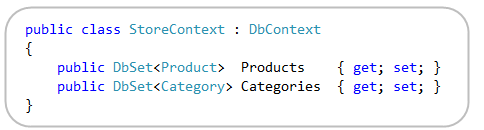
Now that we've defined our two model classes, our next step will be to implement a "DbContext" class using EF code First that will map the model classes to tables in a database.  We'll implement this using the code below:
SNAGHTML4d35a6ee
The "StoreContext" class above is the DbContext class we are using to map our Product and Category classes to/from a database.  It derives from the DbContext base class provided by EF Code First, and exposes two properties that correspond to tables within our database.  For this sample we are using the default "convention over configuration" based mapping rules to define how the classes should map to/from the database.  This means that the Products property will map to a Products table, and the Categories property will map to a Categories table.  In later blog posts I'll talk about how you can optionally override this and perform custom mappings.
You can add the above class anywhere within your solution.  For example, you could add it within the \Models folder of your project – or within a separate class library project if you prefer to keep your data code separate.  You'll want to add a "using" statement to the System.Data.Entity namespace at the top of the class file (in order to reference the DbContext and DbSet<T> classes).
After you've saved the above class files, compile the project – you'll want to have built it before the next step.

Step 4: Scaffold a Categories Controller

We have everything we need to model our data and save/retrieve it from a database.  Now let's create an ASP.NET MVC Controller class that will implement the support necessary to display our Category data and enable creating/editing/deleting Category objects.  Prior to last month's ASP.NET MVC 3 Tools Update, you would have had to manually write a Controller class to do this (and implement all of the EF data access code yourself).  The ASP.NET MVC 3 Tools Update now includes built-in "scaffolding" support that can help do this for you automatically.
To scaffold a new Categories controller class, we'll right-click on the "/Controllers" folder of our project and choose the Add->Controller context menu:
image
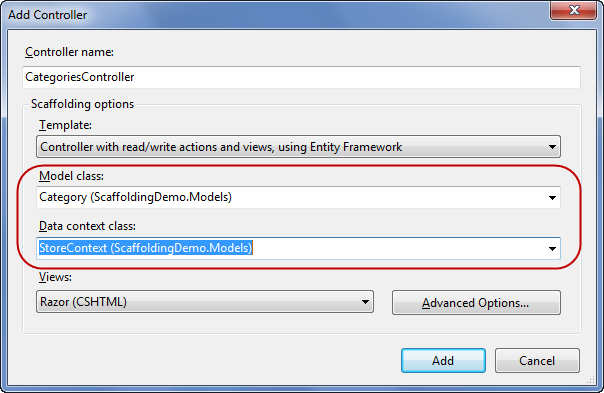
Selecting Add->Controller will bring up the "Add Controller" dialog.  We'll name the controller class we want to create "CategoriesController".  Starting with last month's ASP.NET MVC 3 Tools Update, the "Add Controller" dialog also now supports a new "Scaffolding options" section – which enables you to choose to "scaffold" the new controller using a variety of built-in templates:
image
We'll choose the "Controller with read/write actions and views, using Entity Framework" template – which will create a Controller class that has all of the EF code necessary to create, update, list and delete model objects.
After selecting this template, we can choose the model class we want our Controller to implement CRUD support for – in this case the "Category" class.  We can also select the EF DbContext/ObjectContext class that we want to use to access the database – in this case the "StoreContext" class we defined earlier:
SNAGHTML4d81d687
When we click the "Add" button, Visual Studio will automatically create a CategoriesController class for us – with appropriate Create, Edit, Details, Delete and Index action methods inside it – as well associated view templates for each of the actions:
image
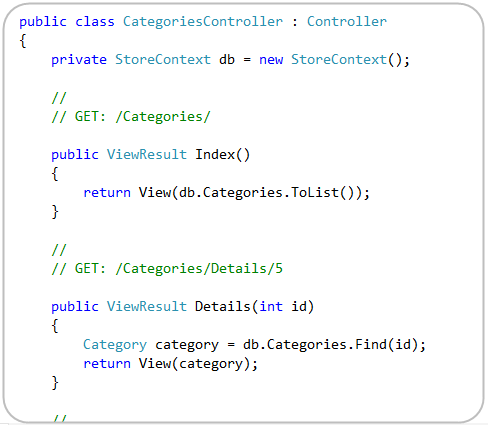
If you open the CategoriesController.cs class you'll find that the action methods within it implement the EF data access code necessary for CRUD support:
image
And now we have all of the code we need to implement data listing/editing for Categories within our database

Step 5: Configuring our Database Location

The last step we'll do before running our application is to point our application at the database we want to use.  EF code first allows you to use an existing database you already have defined, or alternatively you can point it at a database that doesn't yet exist – in which case it will automatically create it for you using the model classes you've defined.
No Connection-String
By default, you actually don't need to configure a connection-string to point at a database.  If you don't specify one, EF Code-First will by default create a new SQL Express database whose name matches your DbContext class name (for example: above it would create a ScaffoldingDemo.Models.StoreContext database within your local .\SQLExpress database instance). 
Explicitly Specifying a Connection-String
You can alternatively explicitly specify where you want your database to live by adding a connection-string to your application's web.config file.  You'll want the name of the connection-string to match the DbContext class name.  For example – in our application above our DbContext class was named "StoreContext", and so by default EF will look for a connection-string with the same name to determine the database location.
Below is the entry we'd add to our web.config file if we wanted to use an embedded SQL CE database named "Store.sdf" within our application's \App_data folder:
<configuration>
      <connectionStrings>
              <add name="StoreContext"
                         connectionString="Data Source=|DataDirectory|\Store.sdf"
                         providerName="System.Data.SqlServerCe.4.0" />
       </connectionStrings>

</configuration>
You can learn more about SQL CE – and the new VS 2010 SP1 tooling support for it – from my previous blog post about it.

Step 6: Run the Application

Ok – let's now run the application and navigate to the /Categories URL.  This will execute our CategoriesController's Index() method – which will list all categories in our database.  Currently we don't have any:
SNAGHTML4dede162
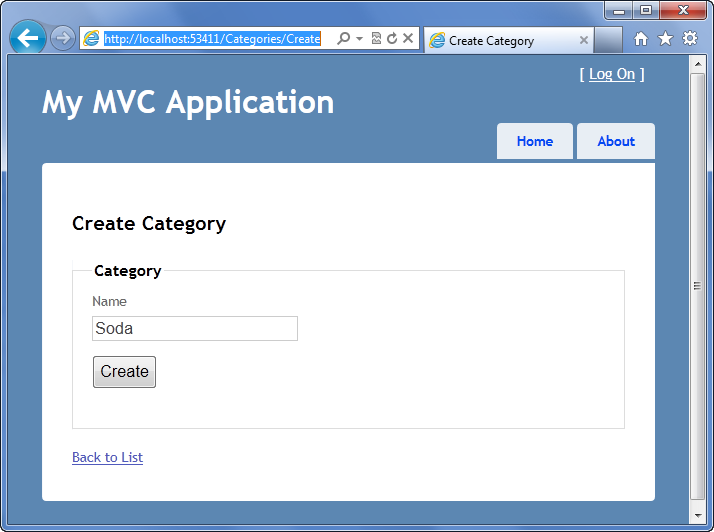
Let's click the "Create New" link to create a new category – this will navigate to the /Categories/Create URL, which provides us with a form to create a new category:
SNAGHTML4def03ef
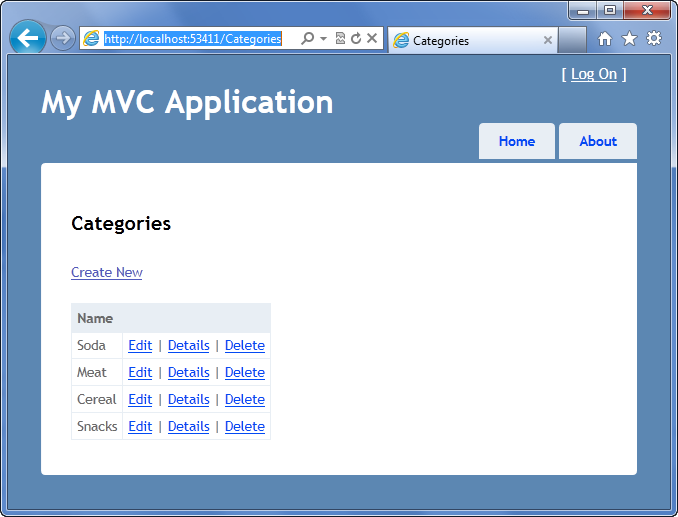
Clicking the "Create" button will post the form to our CategoriesController and add a new Category to our database.  We can repeat this a few times to add several different categories:
SNAGHTML4df02093
The cool thing is that we didn't have to write any Controller or View code to enable this – the scaffolding support automatically generated the code we needed to enable this.  This provides a really easy way to get started.  We can then go in and tweak it as necessary to customize the functionality further.

Step 7: Looking at the database

We configured our application to use a connection-string that pointed to a SQL CE database that (at the time) didn't exist.  When we ran our application, EF 4.1 detected that the database didn't exist and automatically created it for us – based on the Product and Category classes we defined earlier. 
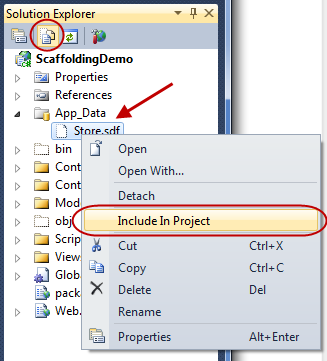
To see the database, click the "Show All Files" icon at the top of Visual Studio's "Solution Explorer" and add the "Store.sdf" database that was automatically created by EF to your project:
image
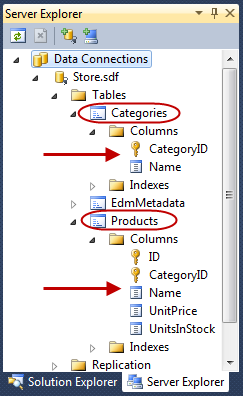
You can then double-click the database to open it up in the Server Explorer – and expand the tables within it to see the schema that was created:
image
Notice above how EF Code First automatically created the appropriate database schema based on the Category and Product classes we created earlier.  It also automatically setup Primary Key/Foreign-Key relationships between the two tables based on the association properties specified in the classes.

Step 8: Scaffolding a Products Controller

We've created a CategoriesController class to manage listing and editing Categories.  Let's now create a ProductsController class to manage listing and editing Products.
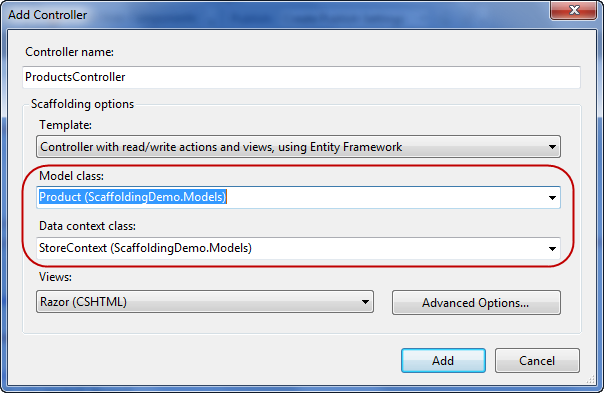
Just like before, we'll right-click on the \Controllers folder in our project and choose the Add->Controller context menu.  We'll name the Controller class we want to create "ProductsController" and indicate that we want to scaffold using the EF template with a Product model class:
SNAGHTML4dfb7c0b
Clicking the "Add" button will scaffold a ProductsController class for us, with appropriate action methods for CRUD scenarios, and create the associated view templates that go with them:
image
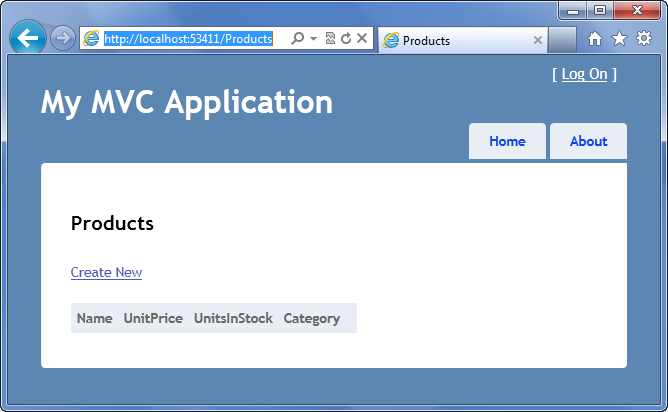
We can then run our project again and navigate to the /Products URL within it:
SNAGHTML4dfeca88
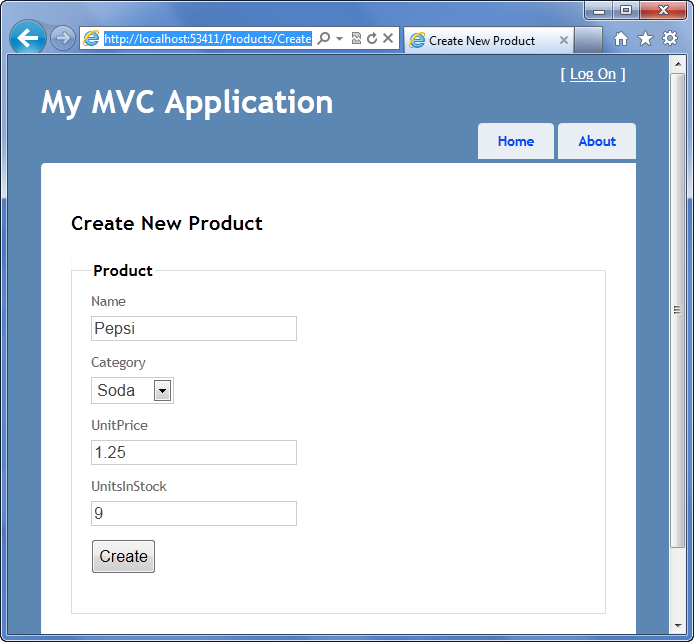
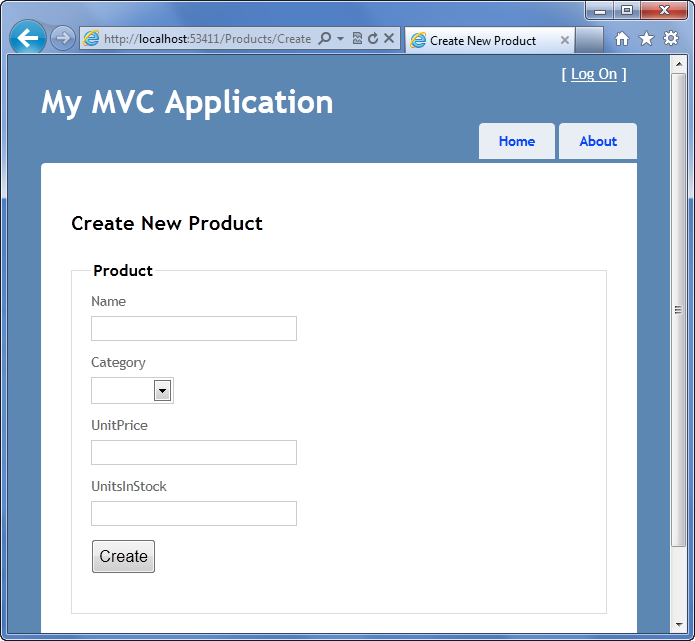
Let's click the "Create New" link to create a new Product:
SNAGHTML4e028a2f
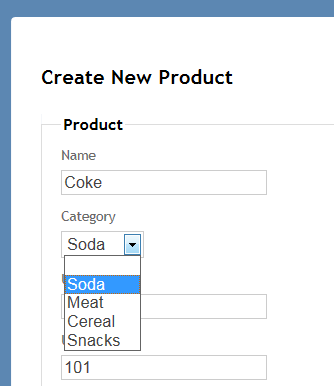
One cool thing to notice is that the "Category" is a drop-down of valid Categories (and not just a textbox with a foreign-key integer value):
image
The scaffolding support within Visual Studio was smart enough to detect that Category was an association, and scaffold EF code that populates the drop-down with valid Categories.
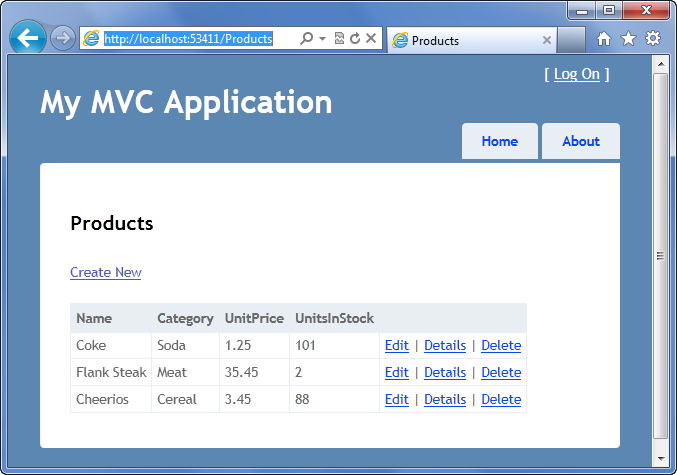
After entering several products our /Products URL will display the data like below:
SNAGHTML4e066438
Notice again how Category is displayed using the friendly name – and not just the foreign-key value.

Learning More

The above walkthrough provided a quick look at the new EF code-first and data scaffolding support built-into the ASP.NET MVC 3 Tools Update, and how you can use them to easily and quickly jumpstart application development.  EF Code First enables you to write incredibly clean data access code.  The data scaffolding support enables you to rapidly create data UI – and then allows you to go in and easily tweak/customize it further.
In addition to working with EF Code-First, you can also use the data scaffolding support against standard EF ObjectContext objects (built using either the database-first or model-first approach and the EF WYSIWYG designer).
Scaffolding
You can learn more about the new ASP.NET MVC 3 Scaffolding Support from Steve Sanderson's excellent talk about it at MIX:
In his talk Steve also covers how you can use the scaffolding support from the command-line (using NuGet) as well as how you can download and use additional scaffolding templates (for example: ones that can automatically implement a repository pattern, etc).  Also make sure you bookmark Steve's excellent blog series about scaffolding (and its extensibility) here:
EF Code First
I'll be doing more blog posts about EF Code First in the future.  Below are links to some tutorials I've written in the past about it:
Note: The above tutorials were written against the CTP4 release of EF Code First (and so some APIs are a little different) – but the concepts and scenarios outlined in them are the same as with the final release.
ASP.NET MVC 3
If you want to learn more about ASP.NET MVC 3, I highly recommend Scott Hanselman's excellent video presentations at the Dutch DevDays and at MIX:
Also check out all of the new content and videos on the http://asp.net/mvc web-site:

Summary

The new ASP.NET MVC 3 Tooling Update is full of goodness.  If you haven't already downloaded and installed it I highly recommend you do so.  Stay tuned for even more blog posts about it!
Hope this helps,
Scott
P.S. I am also now using Twitter for quick updates and to share links. Follow me at: twitter.com/scottgu