Like it

Showing posts with label VB.Net Tips. Show all posts

Sunday, July 17, 2011

Freehand drawing with .Net Windows forms

Few days back, I got a requirement to implement Free Hand drawing in .Net. I searched a lot but I didn't get any good solution, the one I found from code project was Invalidating the picture box every time. So today I got a solution, it not seems to be a perfect solution because Paint events occurs, we need to re-paint the whole lines again.
I am attaching the code here. I will update the post once I get some perfect solution for this.
Private m_Drawing As Boolean = False
    Private m_List As List(Of Point) = Nothing
    Private Sub MyPic_MouseDown(ByVal sender As System.Object, ByVal e As System.Windows.Forms.MouseEventArgs) Handles MyPic.MouseDown
        If e.Button = Windows.Forms.MouseButtons.Left Then
            m_Drawing = True
        End If
    End Sub
    Private Sub MyPic_MouseUp(ByVal sender As System.Object, ByVal e As System.Windows.Forms.MouseEventArgs) Handles MyPic.MouseUp
        If m_Drawing AndAlso m_List IsNot Nothing Then
            If m_List.Count >= 2 Then
                MyPic.CreateGraphics.DrawLines(New Pen(Color.Blue, 1), m_List.ToArray())
            End If
            m_Drawing = False
            m_List.Clear()
        End If
    End Sub
    Private Sub MyPic_MouseMove(ByVal sender As System.Object, ByVal e As System.Windows.Forms.MouseEventArgs) Handles MyPic.MouseMove
        If m_List IsNot Nothing AndAlso m_Drawing Then
            m_List.Add(e.Location)
        End If
    End Sub
    Private Sub frmMain_Load(ByVal sender As System.Object, ByVal e As System.EventArgs) Handles MyBase.Load
        m_List = New List(Of Point)
    End Sub

Sunday, July 10, 2011

How to Write Padded (Formatted) Text File using VB.NET/C#

Writing Equi-Spaced Output using C# and VB.NET

Here is a small code to write a multiplication table.

For i1 As Integer = 1 To 20

Console.WriteLine(i1.ToString & " x 12 = " & (i1 * 12).ToString)

Next i1


Have you ever thought it would be better to have it properly aligned. Then use the Padding options (PadeLeft here) to format the output


Private Sub WritePaddedText() 
' Write a Padded Multiplication Table 
For i1 As Integer = 1 To 20 
Console.WriteLine(i1.ToString.PadLeft(2) & " x  12 = " & (i1 * 12).ToString.PadLeft(3))          Next i1      End Sub  


VB.NET How to Resize the form along with Controls

Windows Form - Resize Controls Dynamically using VB.NET

There would be many occasions you would have come across the need to resize the form to fit some controls/text etc. In the following example we use the combination of LinkLabel and Panel Control to achieve that

Here is the sample form

This is how it needs to be expanded to accomodate the additonal information

I have used a '+/-' hyperlink (LinkLabel Control) to resize the form. (For more info on Link Label : Hyperlink Control in Windows Forms (VB.NET) Application). You can use >> or << etc to be more clear

The controls for Year Founded and Financial Performance are enclosed in a Panel

Add the following code to the LinkClicked event of the LinkLabel

If Panel1.Height = 0 Then 
Panel1.Height = 110 
Me.Height = Me.Height + 110 
Else 
Panel1.Height = 0 
Me.Height = Me.Height - 110 
End If  


The form gets re-sized on clicking the hyperlink (it actually toggles)

See also : How to Get Width and Height of Desktop Screen using C#/VB.NET


How to find Difference between two time (Dates) using VB.NET

Difference between two different dates using VB.NET

DATEDIFF function will come handy to find the difference between a set of dates. The snippet given below gets the difference in seconds

Private Sub DateDiffExample() 
Dim dt1 As Date = New Date(2011, 5, 15, 10, 11, 2) 
Dim dt2 As Date = New Date(2011, 5, 15, 10, 12, 22) 
Dim dt3 As Long = DateDiff(DateInterval.Second, dt1, dt2) 
End Sub  

You can tweak a bit to get for Minutes or Hours etc by

Private Sub DateDiffExample() 
Dim dt1 As Date = New Date(2011, 5, 15, 10, 11, 2) 
Dim dt2 As Date = New Date(2011, 5, 15, 10, 12, 22) 
Dim dt3 As Long = DateDiff(DateInterval.Minute, dt1, dt2) 
End Sub  

Other useful links:


Saturday, July 9, 2011

How to use Function Keys in VB.NET Windows Application


Capture Function Keys in VB.NET Windows Application

The following snippet might help you in capturing the Function Keys (F1 to F12) in a VB.NET application


Private Sub frmWinSamAppMain_KeyDown(ByVal sender As Object, ByVal e As System.Windows.Forms.KeyEventArgs) Handles Me.KeyDown 
Select Case e.KeyCode 
Case Keys.F1 
MessageBox.Show("Help is on the way") 
Case Keys.F5 
RefreshMethod() 
Case Keys.F9 
MessageBox.Show("You have pressed F9") 
End Select 
End Sub  


Hyperlink Control in Windows Forms (VB.NET) Application

How to use Hyperlinks on WinForms (VB.NET)

Create a small Windows Forms like the one below and add LinkLabel Control on the form:


Add the following code to the LinkLabel's LinkClicked event:

Private Sub LinkLabel1_LinkClicked(ByVal sender As System.Object, ByVal e As System.Windows.Forms.LinkLabelLinkClickedEventArgs) Handles LinkLabel1.LinkClicked 
System.Diagnostics.Process.Start("www.google.com") 
End Sub


This will open the website in a new IE window


How to Bind an Object to TextBox

Binding Objects to Windows Form Controls

Here is a simple example to bind a object to textbox control

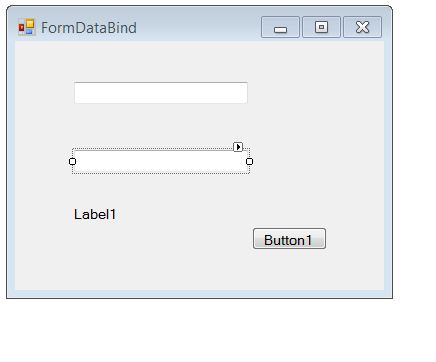
Let us have a small form with two Textboxes, a label and a button


We also have a class that has two properties - Name of Company and the Business they are involved. Here is how the class looks

Public Class ClassDataBind 
Private sPrvName As String 
Private sOfferings As String 
Public Sub New(ByVal sName As String, ByVal sOffer As String) 
Me.Name = sName 
Me.Solutions = sOffer 
End Sub 
Property Name() As String 
Get 
Return sPrvName 
End Get 
Set(ByVal value As String) 
sPrvName = value 
End Set 
End Property  


Let us now Bind the class to the text boxes using

Private Sub FormDataBind_Load(ByVal sender As Object, ByVal e As System.EventArgs) Handles Me.Load 
oDataBind = New ClassDataBind("Accenture", "Consulting") 
TextBox1.DataBindings.Add("Text", oDataBind, "Name", True, DataSourceUpdateMode.OnPropertyChanged) 
TextBox2.DataBindings.Add("Text", oDataBind, "Solutions", True, DataSourceUpdateMode.OnPropertyChanged) 
End Sub


Once the binding is done , run the code to view how it looks :


Since the text boxes are bound to the Objects and we have set the Objects to be refreshed we can change the contents in textboxes and see if the Objects are refreshed.

Private Sub ButtonClicked(ByVal sender As Object, ByVal e As System.EventArgs) Handles Button1.Click 
Label1.Text = oDataBind.Name + " - " + oDataBind.Solutions 
End Sub  


You can now save the object back to DB etc if needed. If you don;t want to update certain field. For example, the company name here - you can do the following: