Like it

Saturday, July 9, 2011

Hyperlink Control in Windows Forms (VB.NET) Application

How to use Hyperlinks on WinForms (VB.NET)

Create a small Windows Forms like the one below and add LinkLabel Control on the form:


Add the following code to the LinkLabel's LinkClicked event:

Private Sub LinkLabel1_LinkClicked(ByVal sender As System.Object, ByVal e As System.Windows.Forms.LinkLabelLinkClickedEventArgs) Handles LinkLabel1.LinkClicked 
System.Diagnostics.Process.Start("www.google.com") 
End Sub


This will open the website in a new IE window


How to Bind an Object to TextBox

Binding Objects to Windows Form Controls

Here is a simple example to bind a object to textbox control

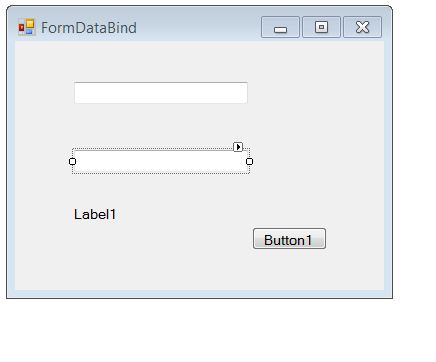
Let us have a small form with two Textboxes, a label and a button


We also have a class that has two properties - Name of Company and the Business they are involved. Here is how the class looks

Public Class ClassDataBind 
Private sPrvName As String 
Private sOfferings As String 
Public Sub New(ByVal sName As String, ByVal sOffer As String) 
Me.Name = sName 
Me.Solutions = sOffer 
End Sub 
Property Name() As String 
Get 
Return sPrvName 
End Get 
Set(ByVal value As String) 
sPrvName = value 
End Set 
End Property  


Let us now Bind the class to the text boxes using

Private Sub FormDataBind_Load(ByVal sender As Object, ByVal e As System.EventArgs) Handles Me.Load 
oDataBind = New ClassDataBind("Accenture", "Consulting") 
TextBox1.DataBindings.Add("Text", oDataBind, "Name", True, DataSourceUpdateMode.OnPropertyChanged) 
TextBox2.DataBindings.Add("Text", oDataBind, "Solutions", True, DataSourceUpdateMode.OnPropertyChanged) 
End Sub


Once the binding is done , run the code to view how it looks :


Since the text boxes are bound to the Objects and we have set the Objects to be refreshed we can change the contents in textboxes and see if the Objects are refreshed.

Private Sub ButtonClicked(ByVal sender As Object, ByVal e As System.EventArgs) Handles Button1.Click 
Label1.Text = oDataBind.Name + " - " + oDataBind.Solutions 
End Sub  


You can now save the object back to DB etc if needed. If you don;t want to update certain field. For example, the company name here - you can do the following:


How to Display Line Numbers in Visual Studio

Show Line Numbers in Visual Studio

It is always better to have Line numbers displayed in Visual Studio when you debug your VB or C# Project. It is not turned on by default. you can turn it on as shown below


Changes are not allowed while code is running or if the option 'Break all

If you are getting this error while editing the code, check if the Break all process option is enabled.


If


How to Change Permission of Folder in Visual Basic / C#

VB.NET Set Folder Permission / C# Set Folder Permission


In this snippet we create a new directory and set the permission of it to Fullcontrol using ACL.

private static void ChangePermissionOfDir() 
//Folder DirectoryInfo NewDir = Directory.CreateDirectory(@"C:\Temp\Te21");
DirectorySecurity dSecur = NewDir.GetAccessControl(); 
FileSystemAccessRule fAccess = 
new FileSystemAccessRule("Everyone",FileSystemRights.FullControl,AccessControlType.Allow  );
dSecur.AddAccessRule(fAccess); 
NewDir.SetAccessControl(dSecur); 
}


Friday, July 8, 2011

 Read XML from Url into Dataset:

 System.Net.WebRequest webReq = System.Net.WebRequest.Create(rssUrl);
 System.Net.WebResponse webRes = webReq.GetResponse();
 System.IO.Stream mystream = webRes.GetResponseStream();
 DataSet ds = new DataSet();
 ds.ReadXml(mystream);

Monday, July 4, 2011

Simple and easy ASP.NET 2.0 Tips and Tricks which you May (or may not) have Tried.

ASP.NET 2.0 is an awesome framework for developing Web applications. If you 've worked with it for awhile then that's no secret. It extends some great new features that you can apply with a negligible quantity of code. I wanted to start a list of some of the most simple (yet cool) things you could do with it that required little or no C # VB.NET code. If you have other suggestions add a comment and I'll update the list if the suggestion is a simple task that can be applied easily.
1. Conserve the position of the scrollbar on postbacks : In ASP.NET 1.1 it was a pain to maintain the position of the scrollbar when doing a postback operation. This was particularly true when you had a grid on the page and went to edit a specific row. Instead of staying on the desired row, the page would reload and you'd be placed back at the top and have to scroll down. In ASP.NET 2.0 you can simply add the MaintainScrollPostionOnPostBack attribute to the Page directive :
<%@ Page Language="C#" MaintainScrollPositionOnPostback="true" AutoEventWireup="true" CodeFile="..." Inherits="..." %>

2. Set the default focus to a control when the page loads : This is another extremely simple thing that can be done without resorting to writing JavaScript. If you only have a single textbox (or two) on a page why should the user have to click in the textbox to start typing? Should n't the cursor already be blinking in the textbox so they can type away? Using the DefaultFocus property of the HtmlForm control you can easily do this.
<form id="frm" DefaultFocus="txtUserName" runat="server">
  ...
</form>

3. Set the default button that is triggered when the user hits the enter key : This was a major pain point in ASP.NET 1.1 and required some JavaScript to be written to ensure that when the user hit the enter key that the appropriate button on the form triggered a "click" event on the server-side. Fortunately, you can now use the HtmlForm control's DefaultButton property to set which button should be clicked when the user hits enter. This property is also available on the Panel control in cases where different buttons should be triggered as a user moves into different Panels on a page.
 <form id="frm" DefaultButton="btnSubmit" runat="server">
  ...
</form>

4. Locate nested controls easily : Finding controls within a Page's control hierarchy can be dreadful but if you know how the controls are nested you can use the lesser known "$" shortcut to find controls without having to write recursive code. If you 're looking for a great way to recursively find a control (in cases where you do n't know the exact control nesting) check out my good buddy Michael Palermo's blog entry. The following example shows how to use the DefaultFocus property to set the focus on a textbox that is nested inside of a FormView control. Notice that the "$" is used to delimit the nesting :
<form id="form1" runat="server" DefaultFocus="formVw$txtName">
   
<div>
       
<asp:FormView ID="formVw" runat="server">
           
<ItemTemplate>
               
Name:
                <asp:TextBox ID="txtName" runat="server"
                   
Text='<%# Eval("FirstName") + " " + Eval("LastName") %>' />
           
</ItemTemplate>
       
</asp:FormView>
   
</div></form>


5. Strongly-typed access to cross-page postback controls : This one is a little more involved than the others, but quite useful. ASP.NET 2.0 introduced the concept of cross-page postbacks where one page could postback information to a page other than itself. This is done by setting the PostBackUrl property of a button to the name of the page that the button should postback data to. Normally, the posted data can be accessed by doing something like PreviousPage. FindControl ("ControlID"). However, this requires a cast if you need to access properties of the target control in the previous page (which you normally need to do). If you add a public property into the code-behind page that initiates the postback operation, you can access the property in a strongly-typed manner by adding the PreviousPageType directive into the target page of the postback. That may sound a little confusing if you have n't done it so let me explain a little more.

If you have a page called Default. aspx that exposes a public property that returns a Textbox that is defined in the page, the page that data is posted to (lets call it SearchResults. aspx) can access that property in a strongly-typed manner (no FindControl () call is necessary) by adding the PreviousPageType directive into the top of the page :
<%@ PreviousPageType VirtualPath="Default.aspx" %>

By adding this directive, the code in SearchResults. aspx can access the TextBox defined in Default. aspx in a strongly-typed manner. The following example assumes the property defined in Default. aspx is named SearchTextBox.
TextBox tb PreviousPage.SearchTextBox;

This code obviously only works if the previous page is Default. aspx. PreviousPageType also has a TypeName property as well where you could define a base type that one or more pages derive from to make this technique work with multiple pages. You can learn more about PreviousPageType here.